In a hurry? See the Coach Quick Start for the 60-second version.
Everything you need to run your team on the COYBL site — signing in, entering scores, logging pitch counts, and more. Every step is shown below.
1. Getting signed in
When you register your team, we email you a link to set your password. After that, tap Sign in — the button is in the top-right corner of the site (open the menu on a phone) — and sign in with your email and password. It works from any phone or computer and stays signed in until you sign out.
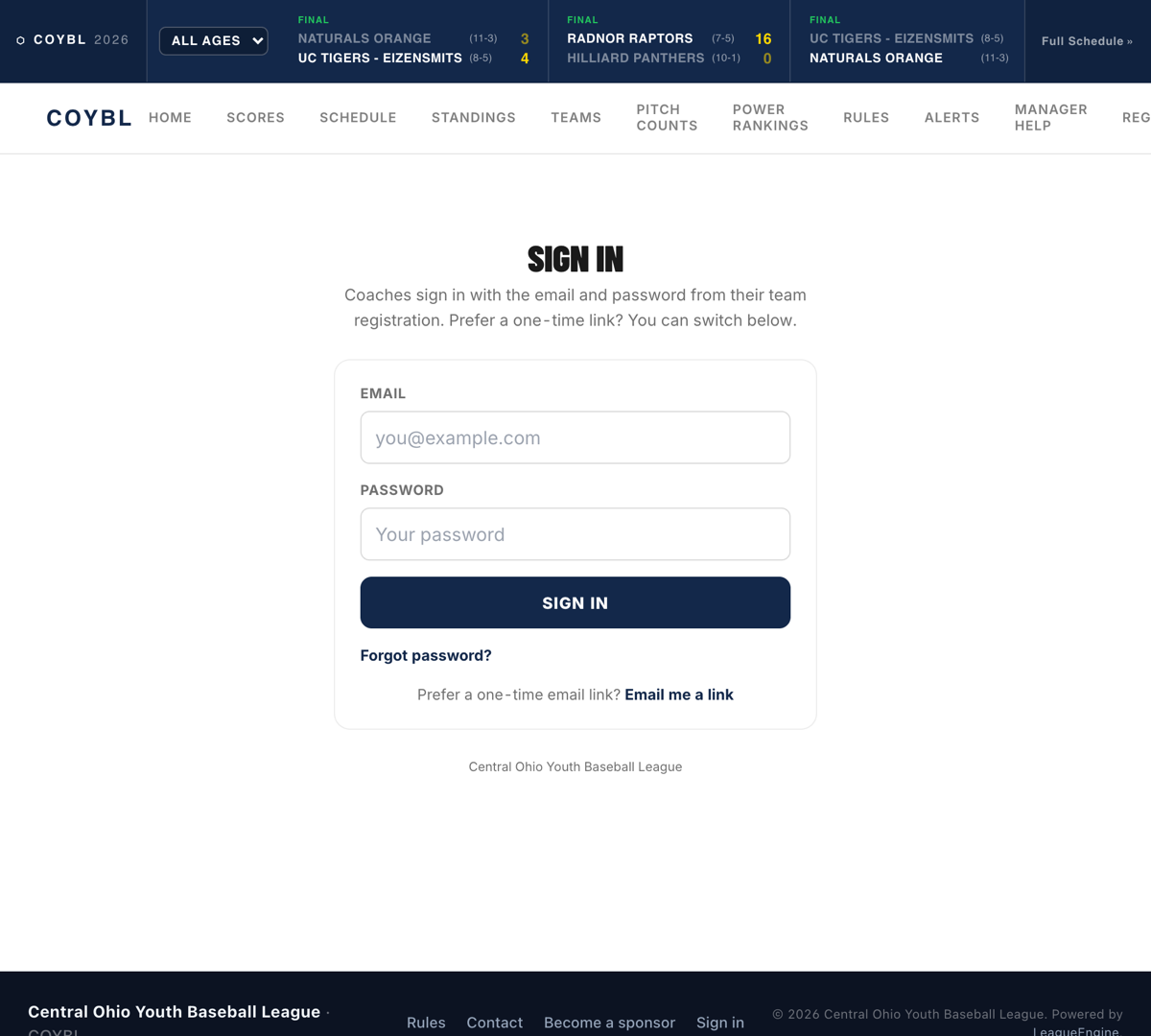
- Forgot your password? Tap Forgot password? and we'll email you a reset link.
- Prefer not to keep a password? Tap Email me a link for a one-time sign-in link instead.
2. Your team dashboard
Once you sign in you land on your team's portal. The strip up top shows your record, division, next game, and results at a glance, with your next game front and center.
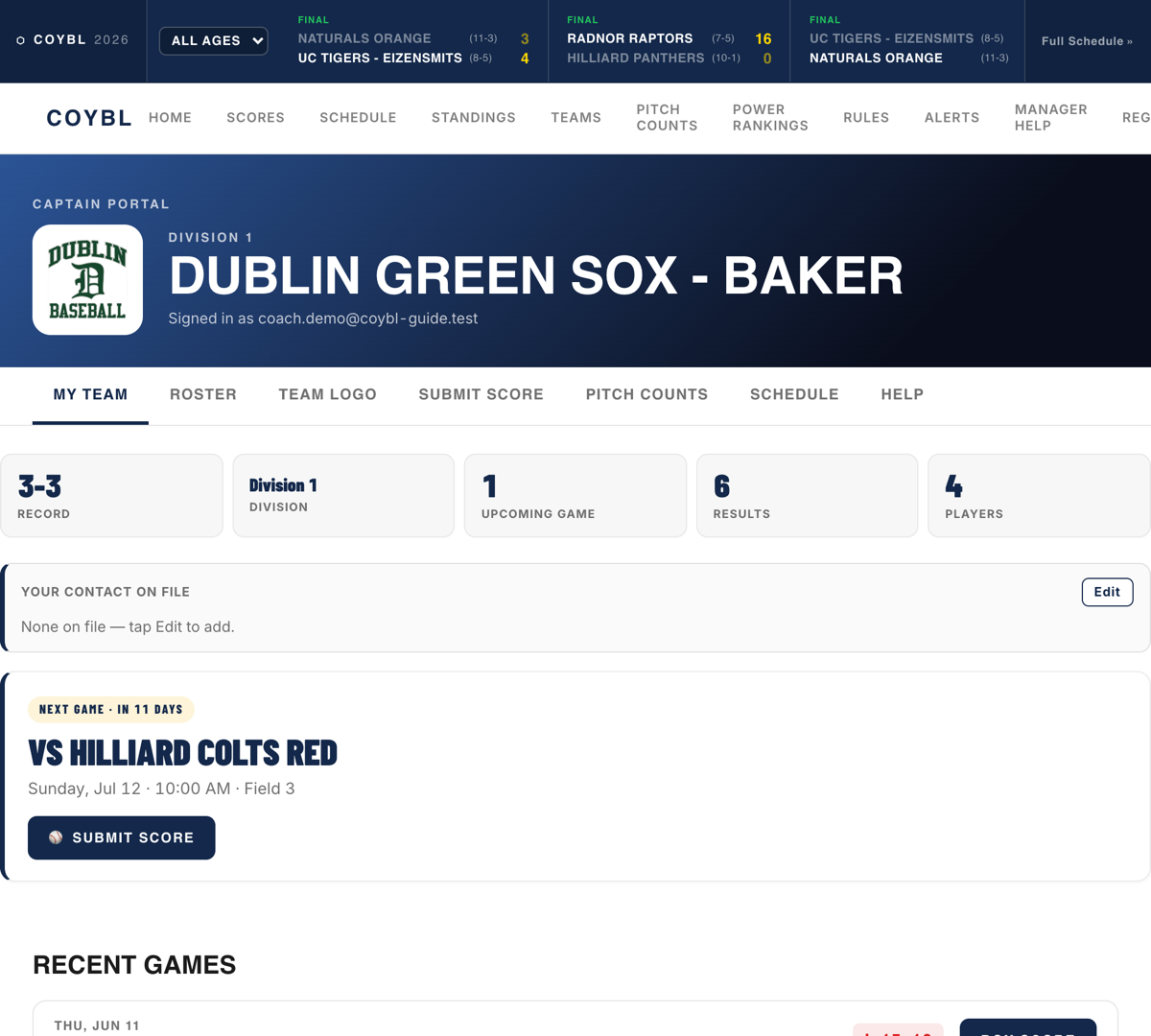
Use the tabs to get around: My Team · Roster · Team Logo · Submit Score · Pitch Counts · Schedule · Help.
3. Entering a score
After a game, open the Submit Score tab and tap ⚡ Quick Score on the game. Enter your final — Us and Them — and tap Submit. That's it; the standings update automatically. COYBL is score-only, so there's nothing else to fill in.
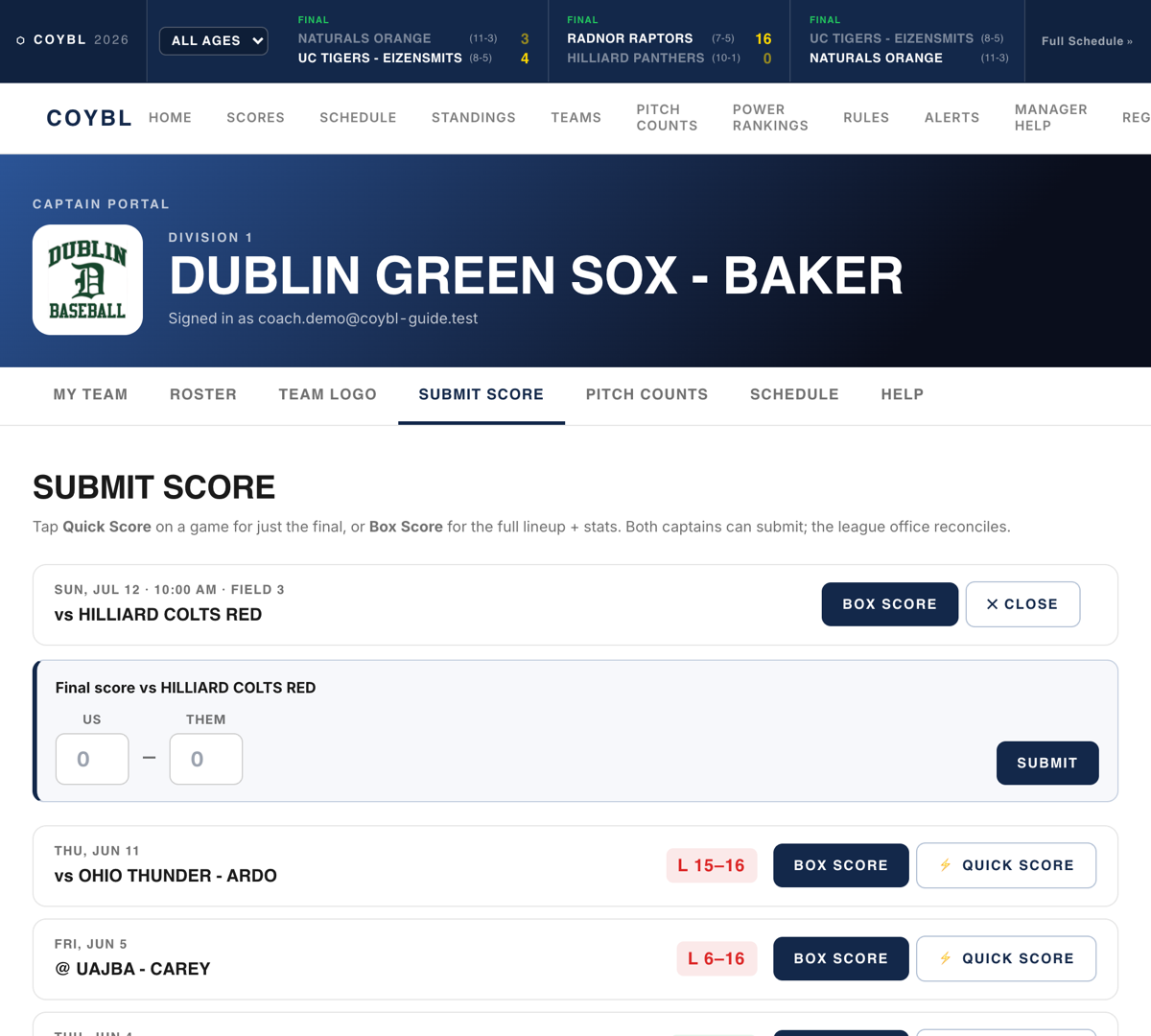
Both coaches can submit a score independently. If the two don't match, the league office reconciles it. (There's also a Box Score option if you ever want full stats, but Quick Score is all you need.)
4. Logging pitch counts (Pitch Smart)
On the Pitch Counts tab, after a game just pick the game (that fills in the date), pick the pitcher from your roster, and enter the pitches thrown. The site automatically calculates the required rest and shows who's eligible for the next game — keeping you compliant with USA Baseball Pitch Smart. (Pitching in a scrimmage, or a pitcher who isn't on your roster yet? You can still type a date or a name instead.)
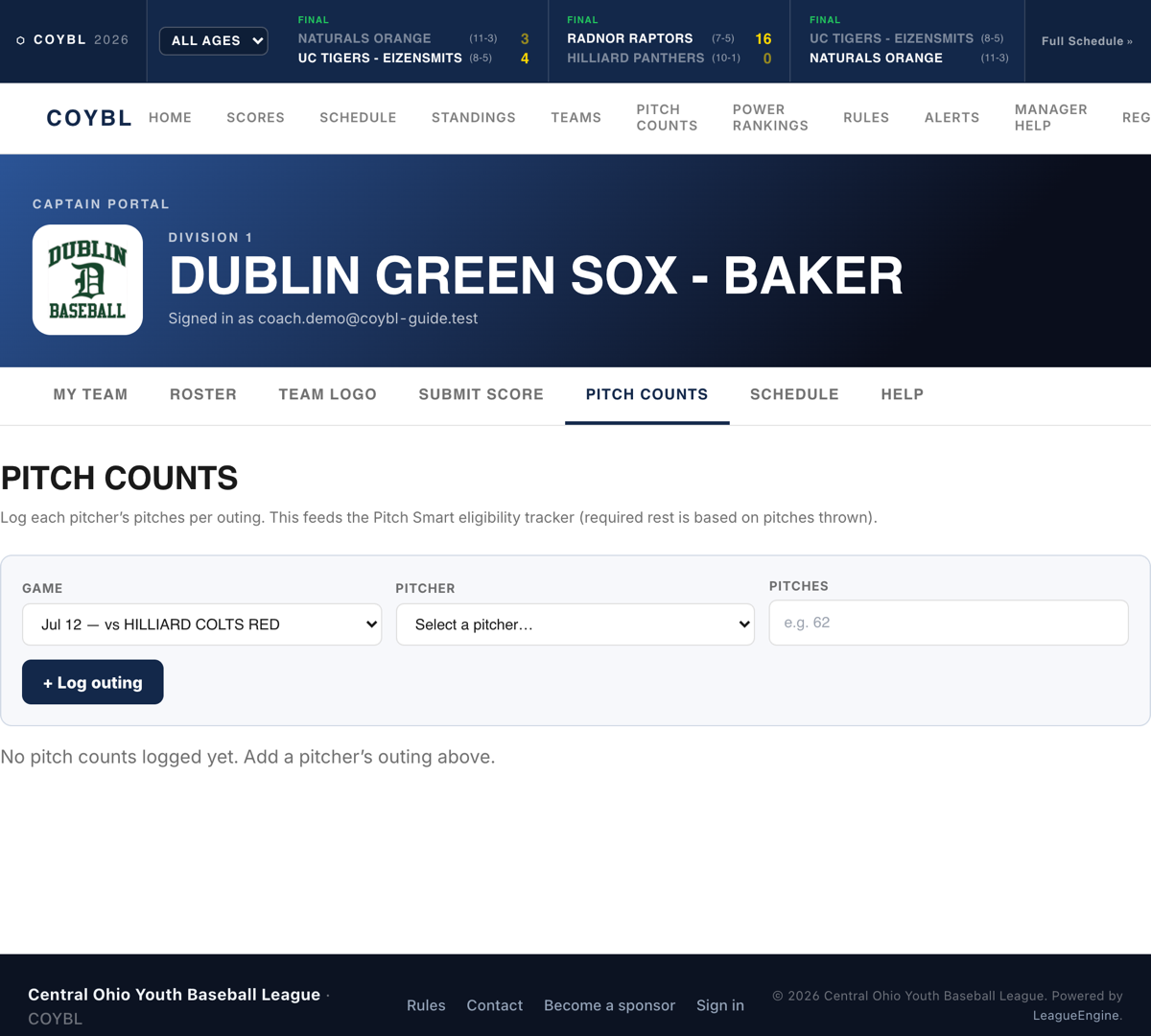
Tip: add your players on the Roster tab first, so they show up in the pitcher dropdown.
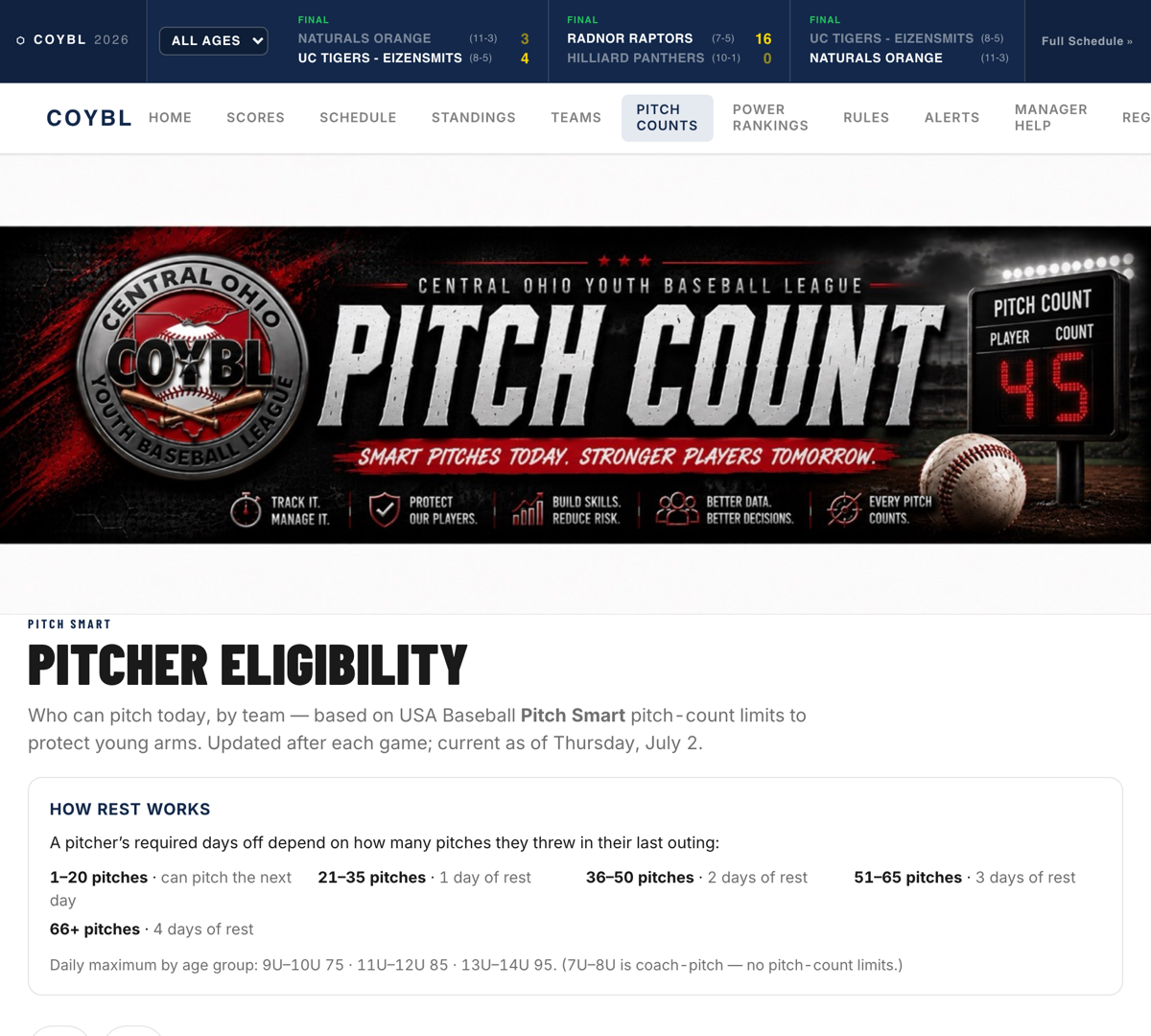
Parents and other coaches can see eligibility on the public Pitch Counts page.
5. Managing your roster
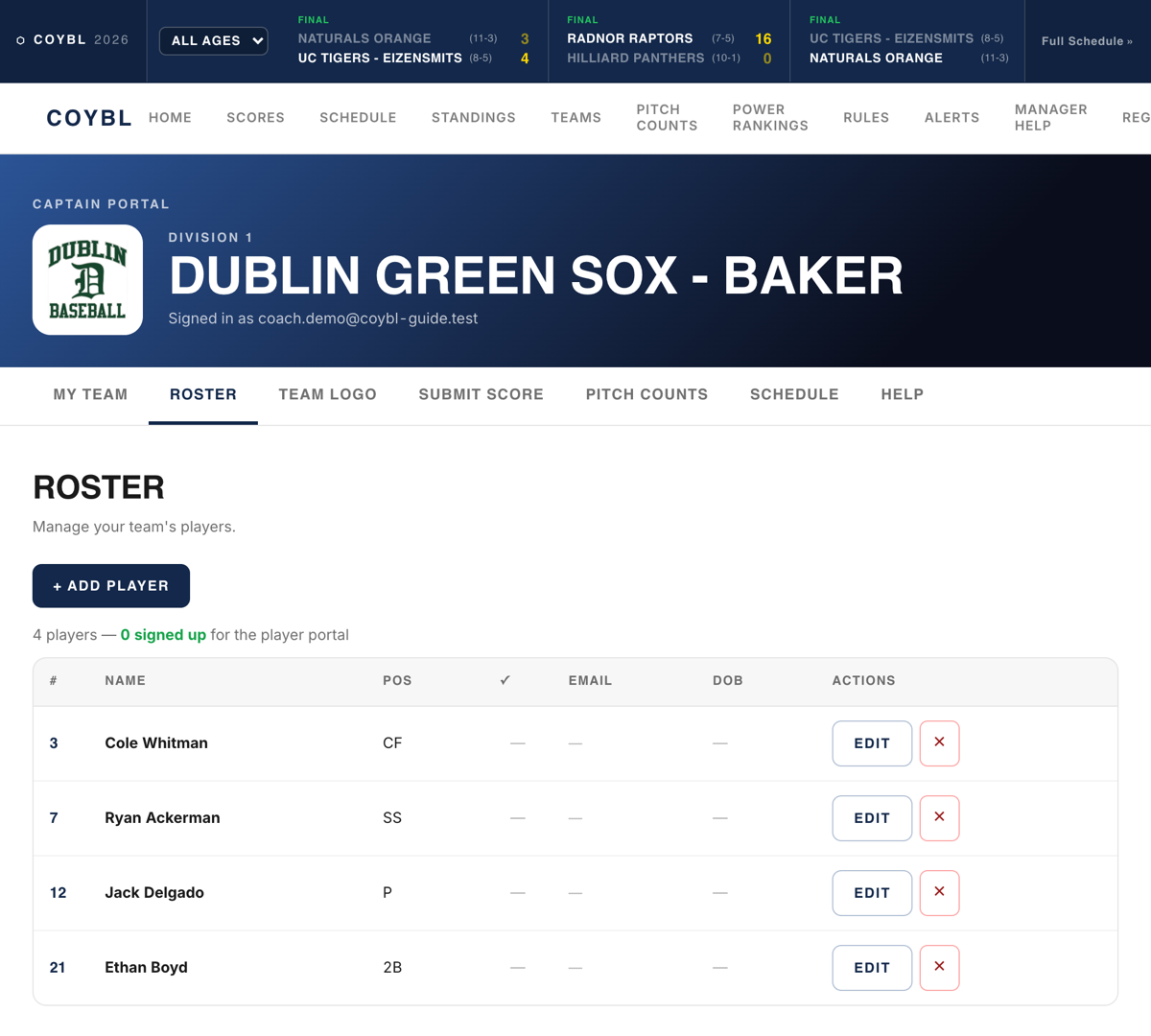
On the Roster tab, tap + Add Player to add players (name, number, position, and optional contact info). Tap any player to edit or remove them. If a player registers themselves, they'll show up here for you to approve.
6. Uploading your team logo
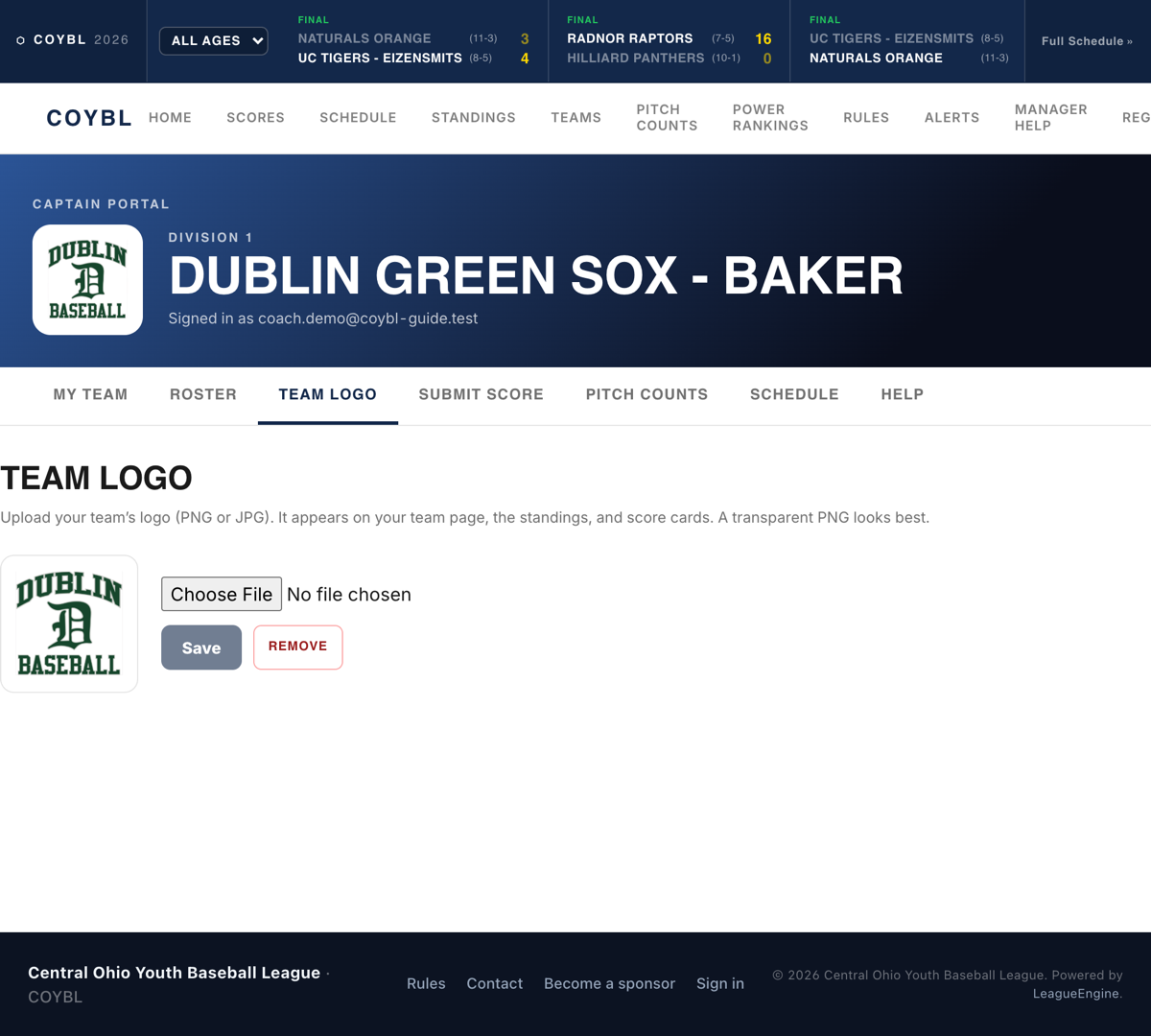
On the Team Logo tab, upload your logo (PNG or JPG). It's resized automatically and appears on your team page, the standings, and score cards. You can also add it during registration.
7. Your schedule & calendar sync
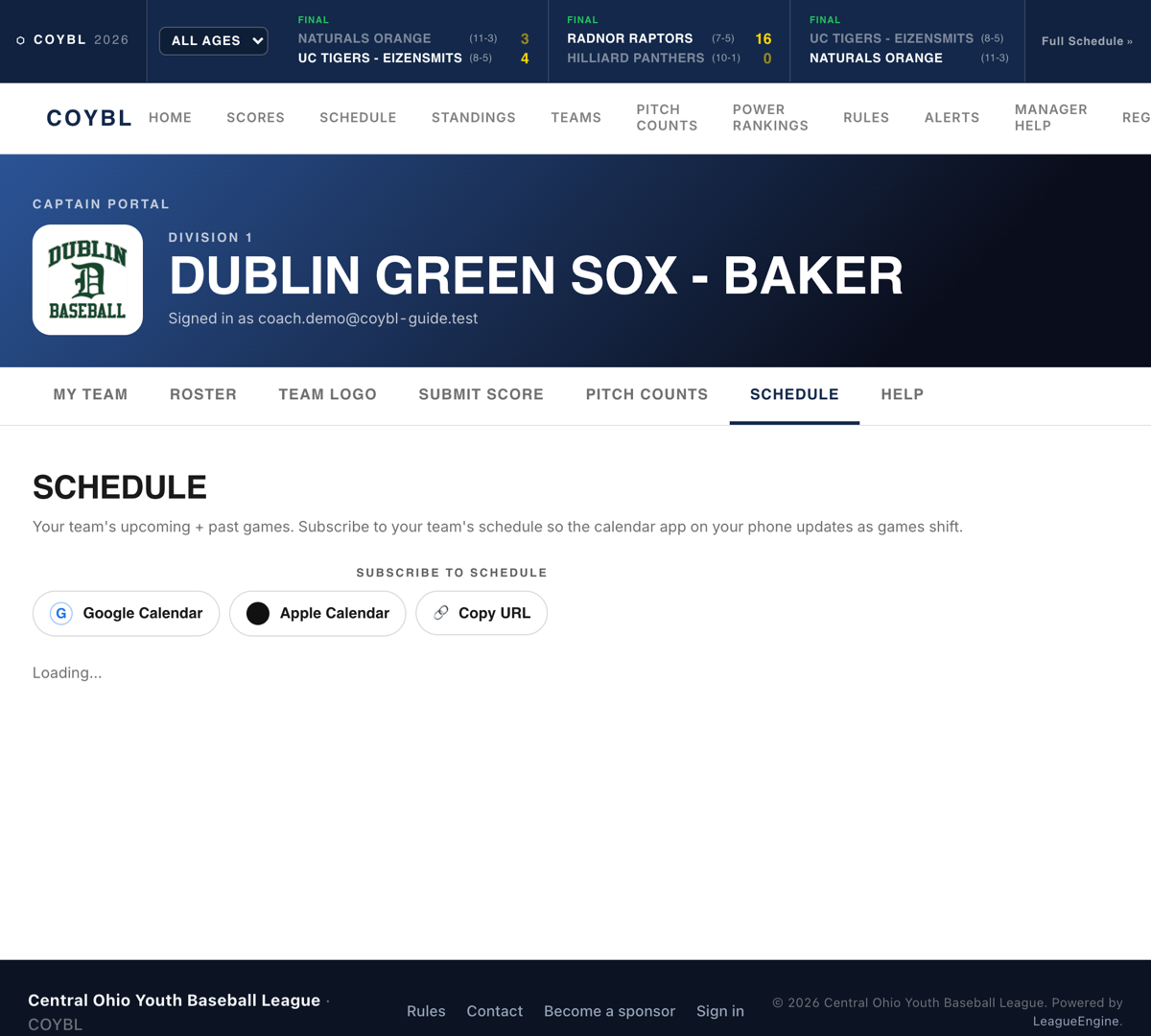
The Schedule tab lists all your games. The league office manages the schedule; use the Subscribe buttons (Apple / Google) to add your games to your phone's calendar so any changes sync automatically.
8. Built-in Help
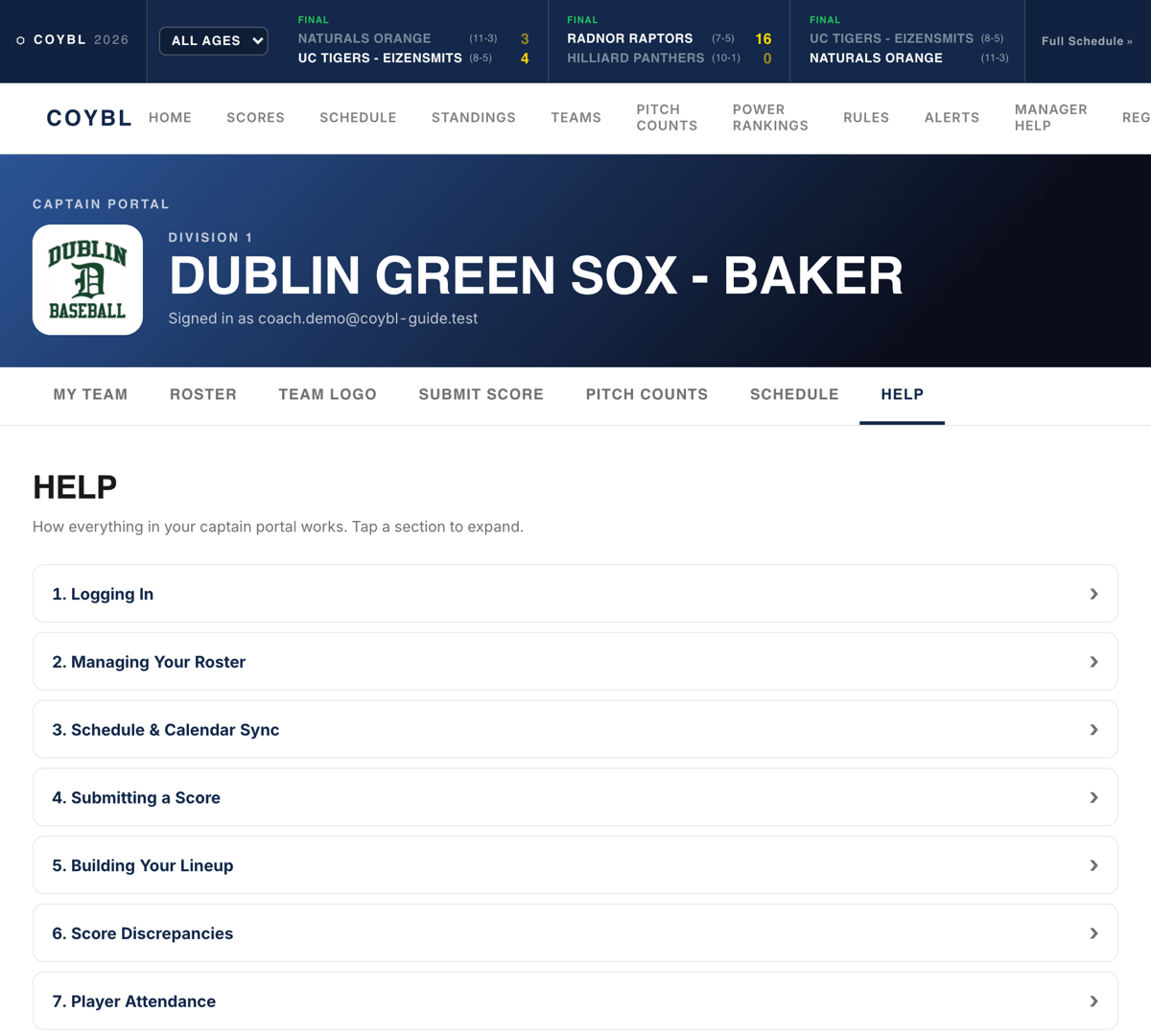
The Help tab inside your portal covers all of this too, so it's always a tap away while you're managing your team.
What parents & fans see
Everything you enter feeds the public side of the site automatically — no extra work:
Team page — your schedule, roster, logo, and live division standings.
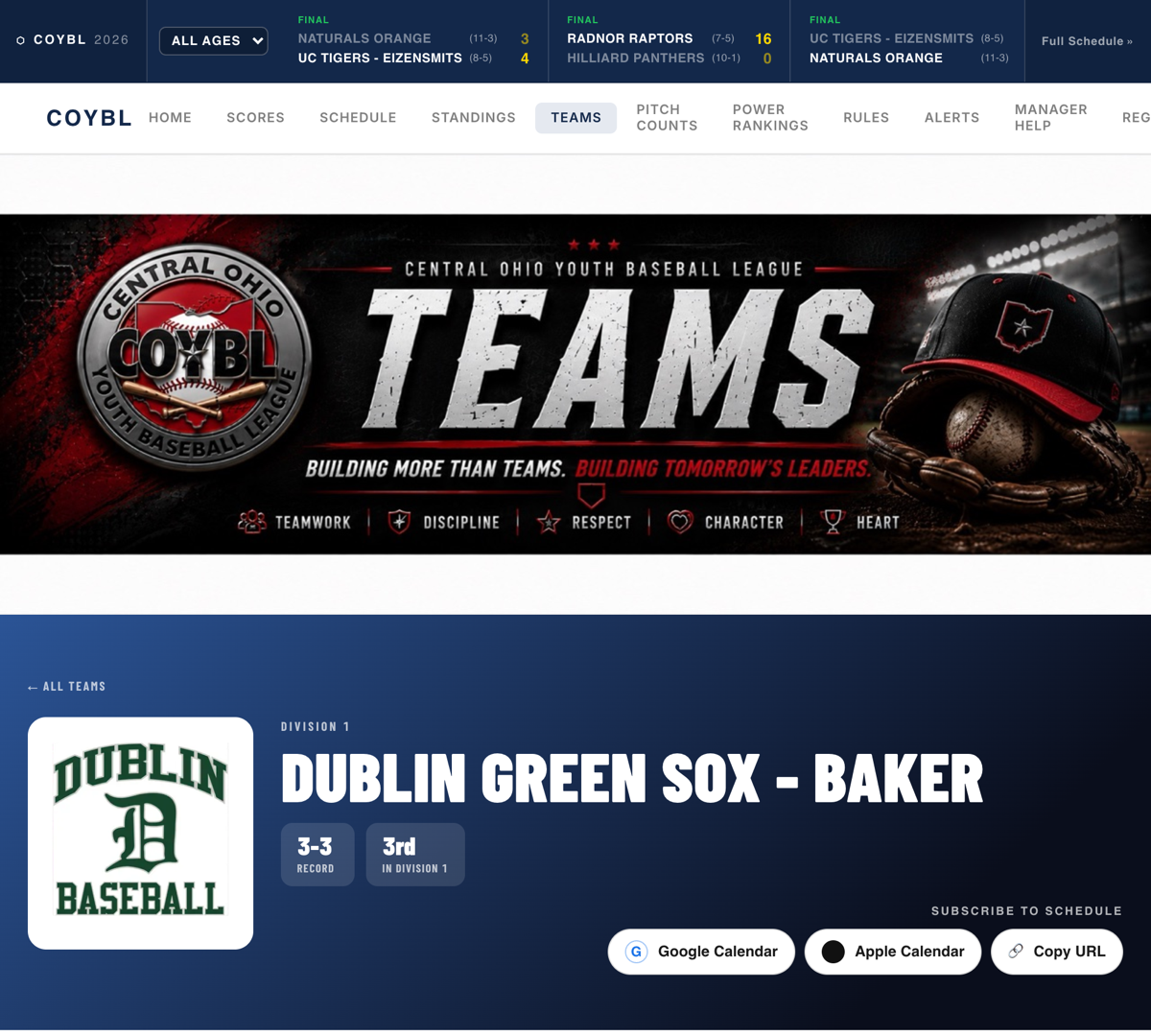
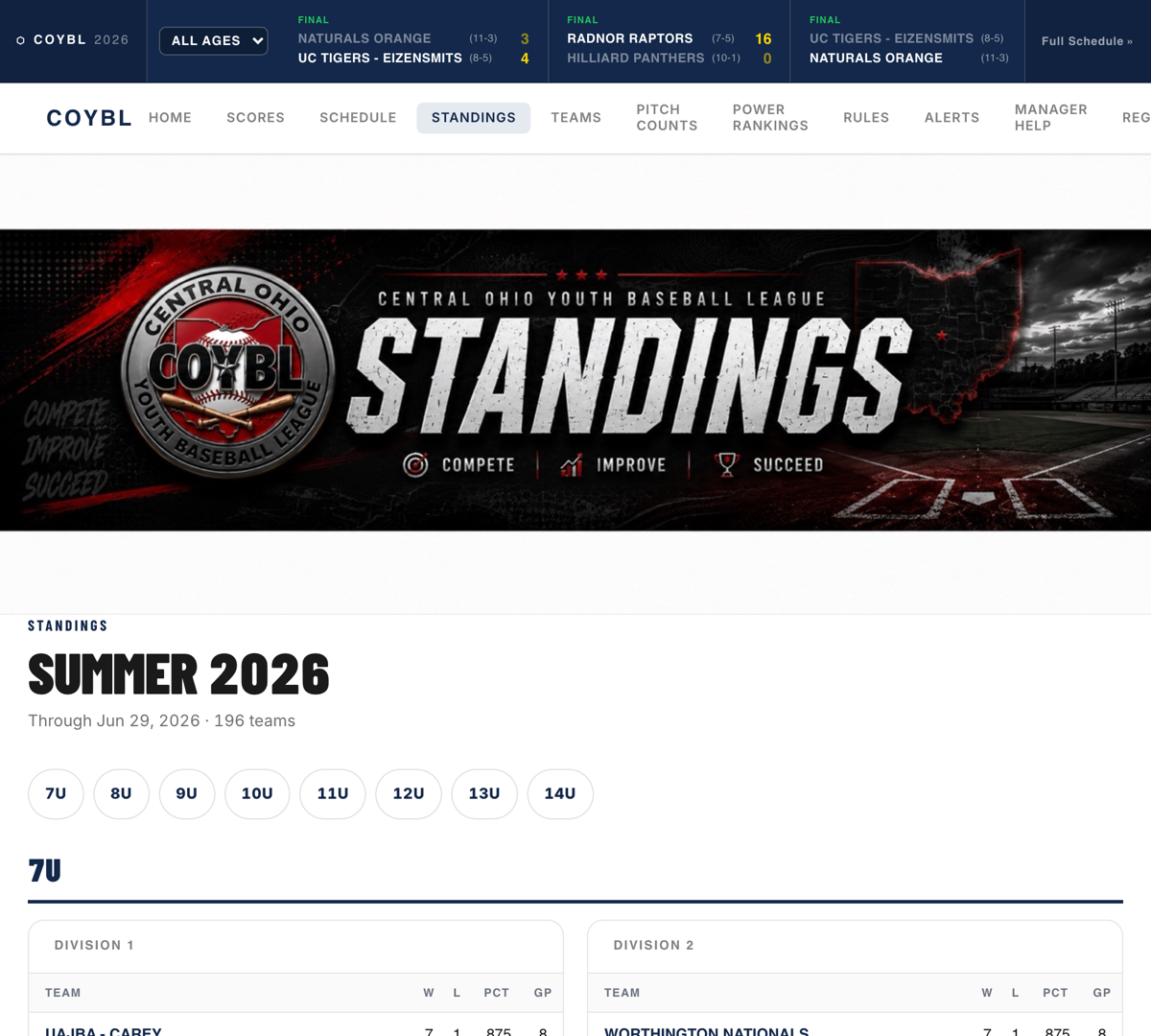
Standings — updated from game results.
Pitch Counts — pitcher eligibility from the counts you log.
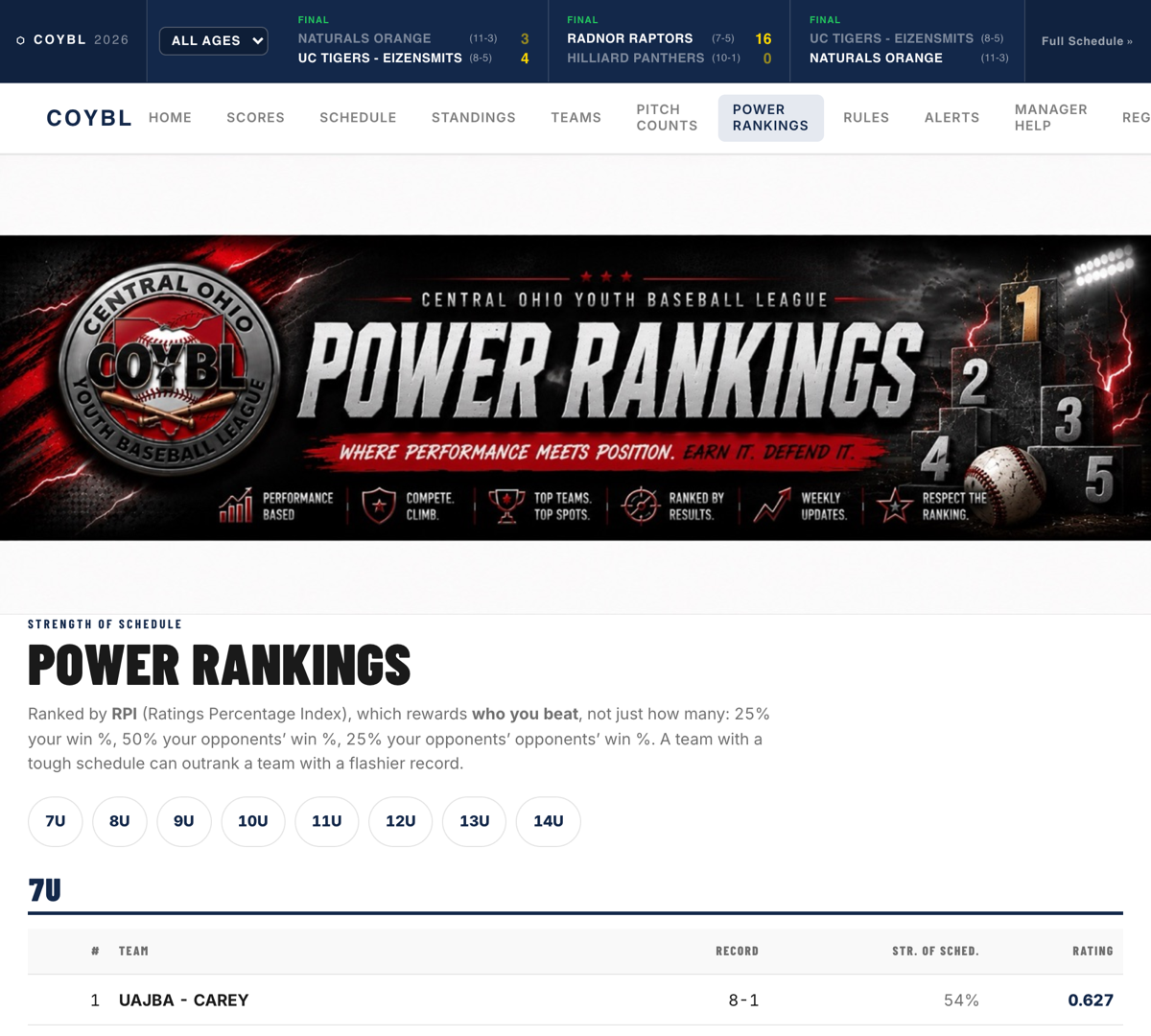
Power Rankings — strength-of-schedule ratings, computed automatically.
Registering a team
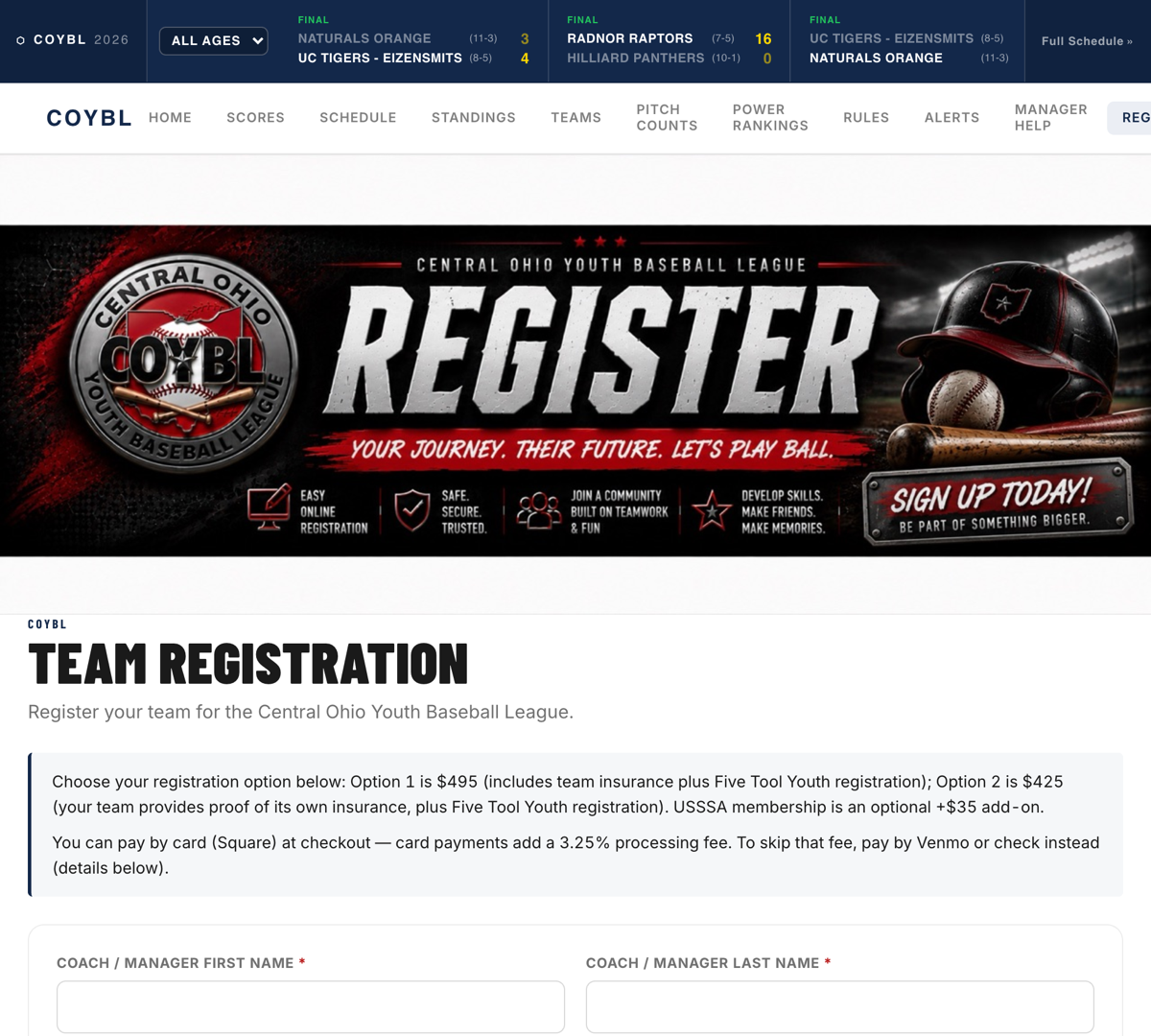
New team? Use the Register link and fill out the team form — coach info, age group, GameChanger link, team logo, and payment. Pay by card (Square) at checkout, or by Venmo/check to skip the card fee.
About game recaps
You don't have to write recaps — each game's recap is generated automatically. Just submit your score and you're done. (League admins can tweak a recap if they ever want to.)
Still stuck? Reach your age-group director on the Contact page and we'll help you out.